
Landing page
There are various ways that you can enhance the layout of a basic page so that it feels more like a landing page. These methods are detailed below.
To include content from another basic page on a landing page you need to:
- Create a basic page
- Add some content to it
- Navigate to the basic page you are using as your landing page
- Add a page tag with the structure 'include:[slug of page to include]'. For example, if the page you're including has the slug 'my_include_page' then the tag would be 'include:my_include_page'.
Below is an example of a basic page include:
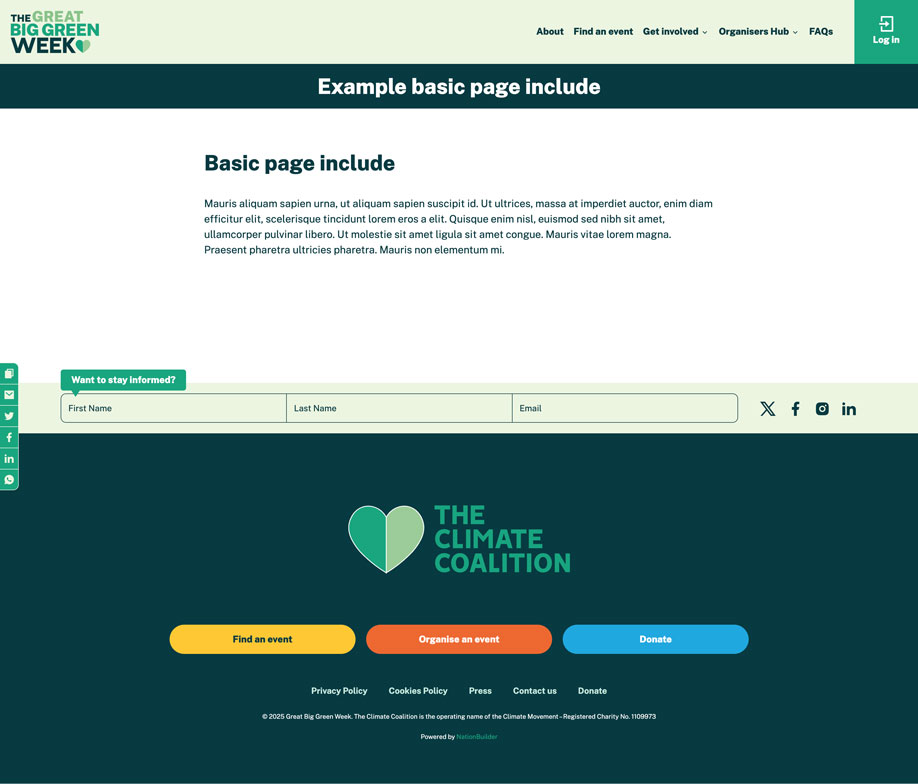
By default page includes will be ordered on the page according to when they were added to the page. However, you can set the order of page includes by appending '**order:[number to appear on the page]' to your include tag.
So for example if I have to includes on a page:
include:my_sign_up_form, include:about_us_intro
And I want to guarantee that the 'about_us_intro' include appears first on the page, I can append the order to the tags like this:
include:my_sign_up_form**order:2, include:about_us_intro**order:1
You can add featured image to basic page include by adding a slide in the include page's 'Featured content sliders' section found in the page 'Settings'.
As with a header image, if you don't want the featured image to link to another page you can add the same slug as the include page in the 'Page to feature*' field.
If you add more than one slide then they will appear as a carousel wherever the page is included.
You can see an example of a basic page include with an image below:
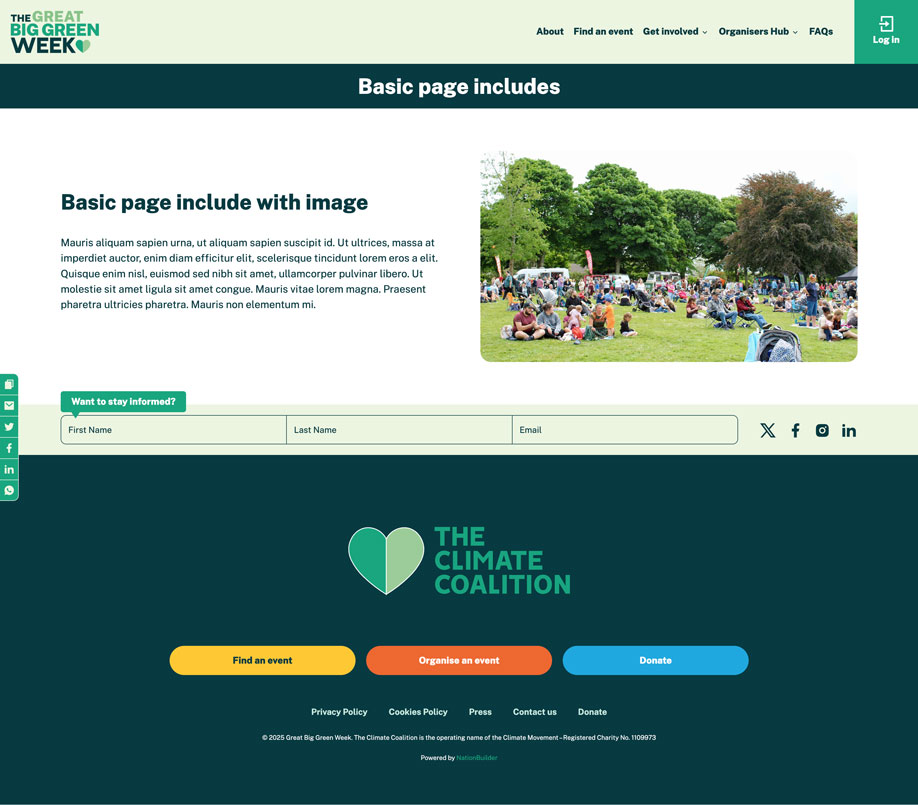
In certain include instances (basic page with image and forms) you can align the text to the left and the image or form to the right, if required, by doing the following:
- Go to the include basic page (for example if your include page is 'my_include_page' then this the page you need to edit).
- Add the tag 'block align:right'.
- Save the page.
The include block will now appear on the landing page with the text on the right and the image or form on the left. Below is an example showing this:
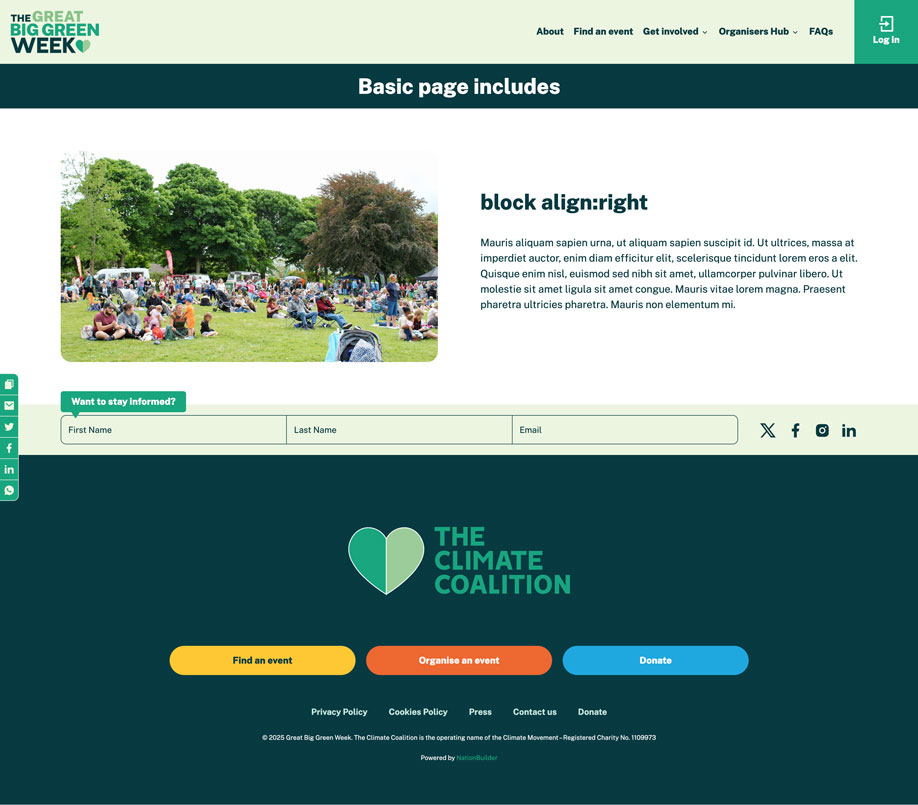
For any include block you add to a page there are seven possible colour scheme available for use.
By default the include will have a white background. You can change the include colour scheme by doing the following:
- Go to the include basic page (for example if your include page is 'my_include_page' then this the page you need to edit).
- Add a tag with the structure 'colour scheme:[1,2,3,4,5 or 6]'. So if I want to use the 4th available alternative scheme the tag would be 'colour scheme:4'.
- Save the page.
The include block will now appear on the landing page with the specified colour scheme. Below is an image showing the different schemes available.
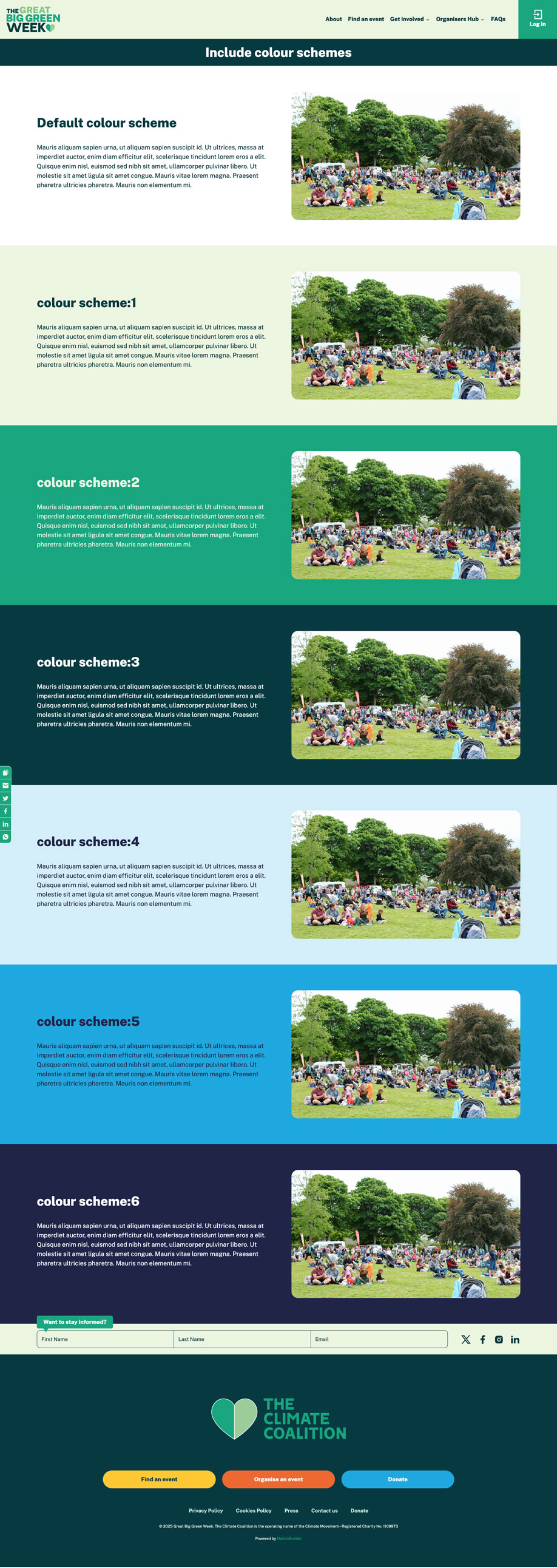
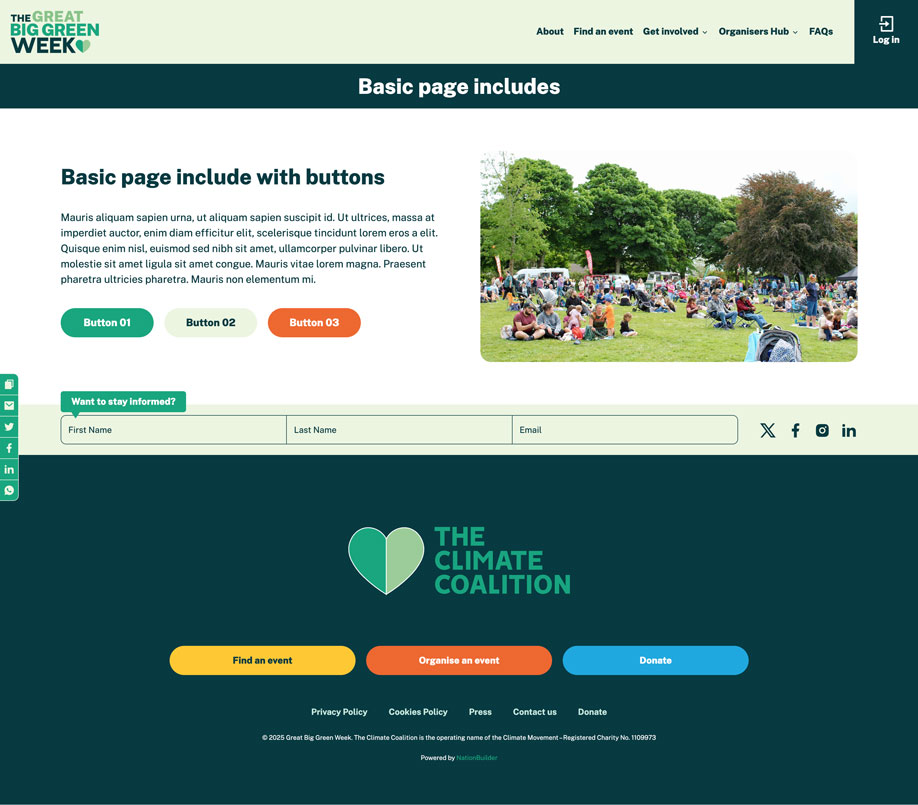
You can add up to three 'Call to Action' buttons to a basic page include by doing the following:
- Go to the include basic page (for example if your include page is 'my_include_page' then this the page you need to edit).
- Add a tag with the structure 'button [1,2or 3]:[slug or url to link to]'. So if I want to add button 1 to the include linking to a page with the slug 'about_us' the tag would be 'button 1:about_us'.
- Save the page.
By default the button label will read 'Find out more' but you can change the label by appending '**' followed by the desired label to the tag. So for example, if I want my button to read 'About us' then the tag would be 'button 1:about_us**About us'.
Below is an image showing a basic include with all three buttons added:
You can add a YouTube video pop up to a basic page include by doing the following:
- Go to the include basic page (for example if your include page is 'my_include_page' then this the page you need to edit).
- Add a tag with the structure 'video:[url fo YouTube video]'. So if you want the video located at https://youtube.com/my-video to appear in a pop up on click then the tag should be 'video:https://youtube.com/my-video'.
- Save the page.
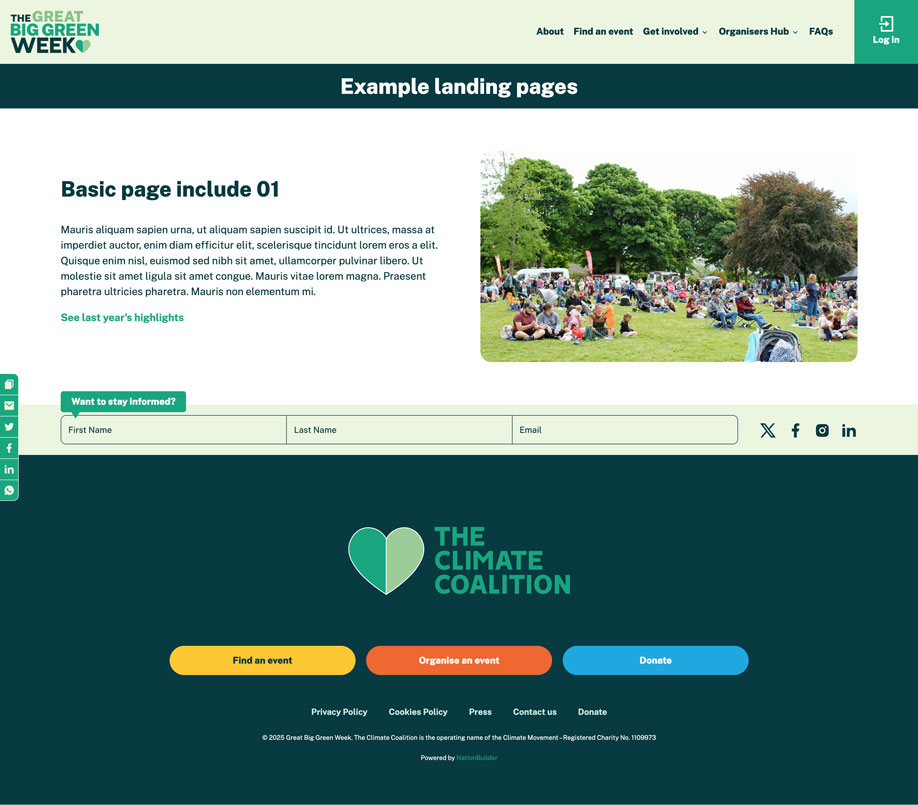
By default the link label for the video will read 'Watch the video', you can change this by appending '**' followed by the desired label to the tag. So for example, if I want my video link to read 'See last year's highlights' then the tag would be 'video:https://youtube.com/my-video**See last year's highlights'.
Below is an image showing a basic include with a video link added:

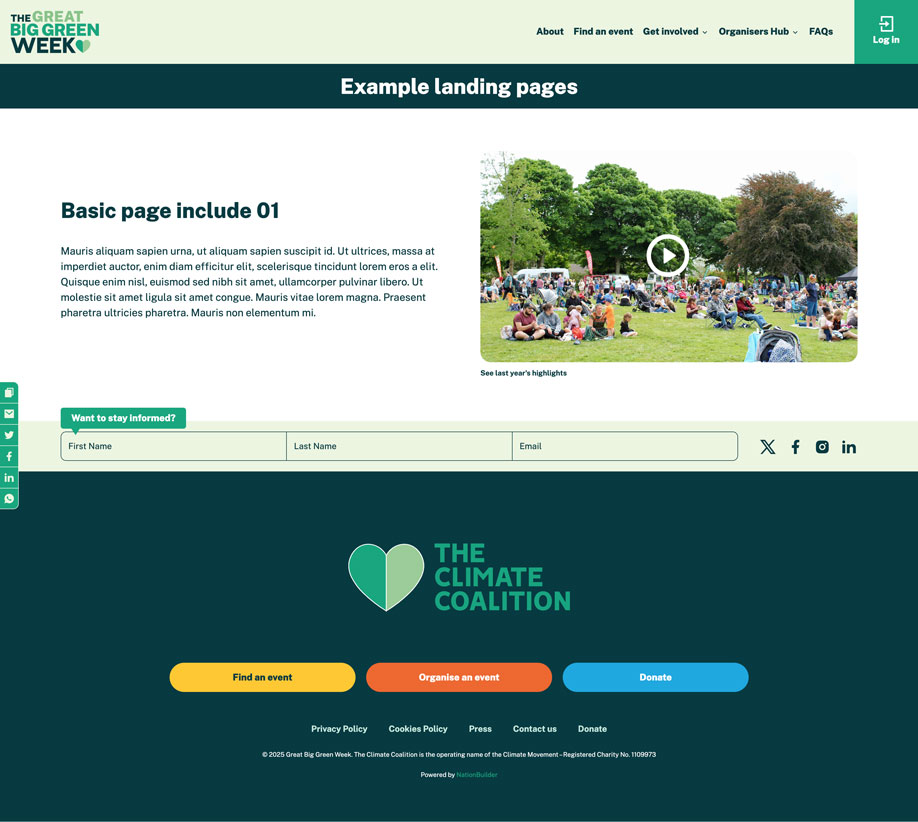
If the include has an image you can overlay the pop up click on that instead by adding the tag 'image video click':
Includes are not limited to basic pages, blogs and calendars. Any other page type can be included on a page as well by following the same formula outlined in the 'Basic Page includes' section of this documentation.
So for example, if you had a sign up form with the slug 'my_signup_form' and you wanted it to appear on the page in the third position your tag would be 'include:my_sign_up_form**order:3'.
You could also apply a colour scheme in the same way as described in the 'Changing the colour scheme of an include' section above.