
Page header section
This section show you how to add different elements to the header area of a page.
These principles apply to instances where a featured image slider is present and when it is not.
To add a an intro excerpt to the header section of a page do the following:
- Go to the page 'Settings' tab
- Go to the 'SEO' tab
- Add your desired intro in the 'Excerpt' field
- Add the tag 'add intro' to the page
You can see an example of this on the Get Involved page.
Supporter nav buttons are the main Call to Actions that are set here and appear in the footer of the site by default.
They can also be added to the header of a site, be that overlayed on a featured slider, or just underneath the main title, by adding the tag 'add main buttons'.
An example of this can be seen on the site home page.
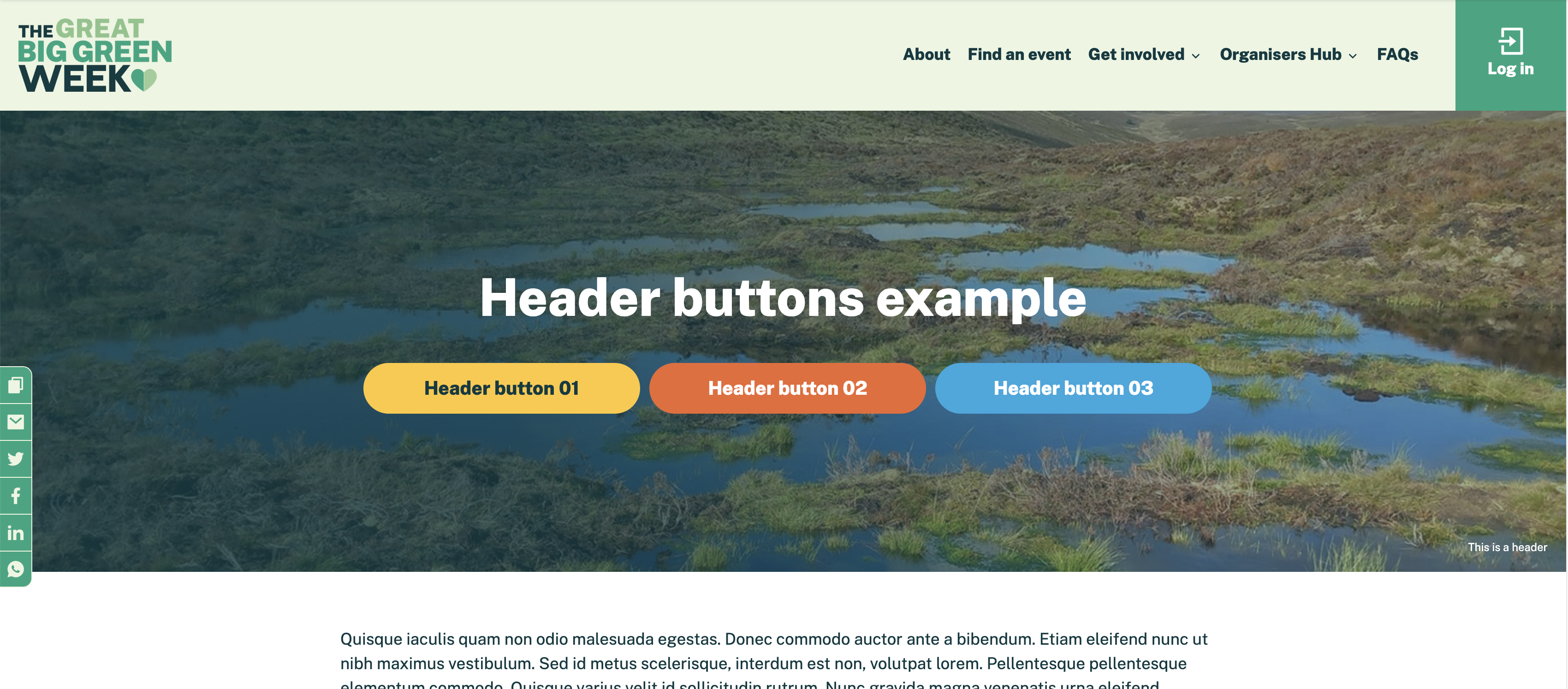
You can add up to three 'Call to Action' buttons to a the header section of a page by doing the following:
- Go to the page you want to add the buttons to in the dashboard.
- Add a tag with the structure 'header button [1,2or 3]:[slug or url to link to]'. So if I want to add button 1 to the header section with the slug 'about_us' the tag would be 'header button 1:about_us'.
- Save the page.
By default the button label will read 'Find out more' but you can change the label by appending '**' followed by the desired label to the tag. So for example, if I want my button to read 'About us' then the tag would be 'button 1:about_us**About us'.
Below is an image showing a page with all three buttons added:
The footer of the site already show the default sign up form in a condensed form. You can add it to the header section of a page as well by adding the tag 'add_signup' to a page or post.
To change the default sign up form:
- Navigate to the form you want to set as the default.
- Go the to page settings tag.
- Tick the checkbox 'Make this the default sign up form'.
Note: Doing this will change all instances of the header and footer form across the site.
You can see an example of this on the site home page.